How to Build a Public Help Center from Google Docs
Plan the sections, publish a Google Drive folder as a help center anyone can read without signing in, and write articles customers actually finish.

You don't need Zendesk Guide, Intercom Articles or a docs platform to give customers a proper help center. If your team already writes in Google Docs, you can publish a folder of Docs as a clean, searchable help center that anyone can read without signing in, and keep editing it in the editor you already use. (Comparing tools first? See our GitBook and Zendesk Guide alternatives.)
This guide shows how to plan the help center, set it up from a Google Drive folder, write articles customers actually finish, and keep it current. The tool we use for the publishing part is Spaceli, which we make: its own Help Center is a public Spaceli space built exactly this way.
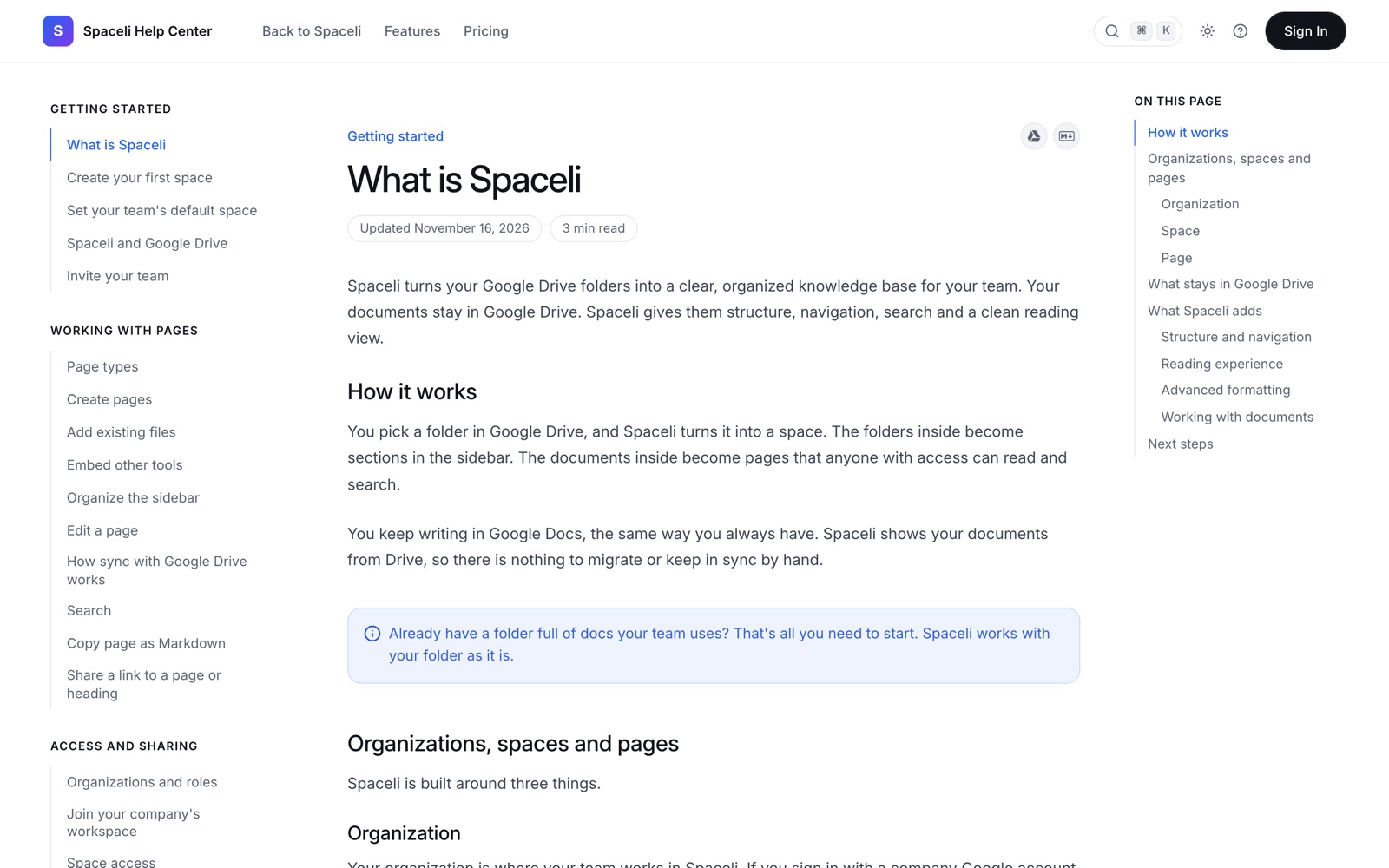
Why Google Docs works for customer docs: your support and product teams already write there, co-editing and comments are built in, and there's no second editor or separate login to manage. The docs stay in your Drive, so the help center is never locked into one vendor.
Plan it before you write
A help center works when customers find the answer before they open a support ticket. Plan three things first.
Who reads it. New customers setting up, everyday users looking up a how-to, and admins handling billing and access. Each group needs its own section near the top.
The sections. Most product help centers fit this shape:
Help Center (Drive folder)
├── 01 Getting started
├── 02 Using the product
├── 03 Account and security
├── 04 Billing
├── 05 Integrations
└── 06 Troubleshooting
The first 20 articles. Pull the most common questions from your support inbox, chat history and sales calls. Twenty well-written answers usually cover most of what customers ask, and you can launch with them instead of waiting until everything is documented.
Step by step: from a Drive folder to a public help center
1. Create the folder in Google Drive
Use a shared drive or a folder owned by a team account, so the help center doesn't depend on one person. The folder setup from how to create a wiki in Google Docs works here too.
2. Write the first articles in Google Docs
One article per question, titled the way customers ask it: "Reset your password", not "Password management". Use real heading styles, so each article gets a table of contents.
3. Connect the folder to Spaceli
Sign in with Google and create a space from the folder. Folders become sections in the sidebar, and every Doc becomes a page with clean, consistent typography, however it was styled in Docs. Reorder sections and pages with drag and drop; the order lives in Spaceli and doesn't touch Drive.
4. Add what plain Docs can't show
Write callouts (Note, Tip, Warning, Danger, Success) with a simple marker at the start of a paragraph, and code blocks with syntax highlighting for API or setup steps. Paste a YouTube link on its own line to embed a video, or the embed code of a Loom recording, or add an embed page for a Figma prototype or a Google Map.
5. Make the space public
Turn on public access and anyone with the link can read the help center without an account. Your team keeps editing in Google Docs, or right inside Spaceli, and changes sync both ways with Drive.
6. Match your brand
Pick one of five color themes for the space, in light and dark mode, and pin up to three quick links in the header, such as your status page or contact form. Custom domains, such as help.yourcompany.com, are coming soon.
7. Add the internal side
Keep a private space for your support team next to the public one: macros, escalation rules and known issues. Both are written in the same Drive, so moving an answer from internal to public is a copy, not a rewrite. More in internal wiki and public docs from one Google Drive.
How to write help articles customers actually read
Customers open a help article in the middle of a task, usually a little frustrated. Write for that moment.
- Answer in the first line. "You can reset your password from the sign-in page in under a minute." Then the steps.
- Number the steps. One action per step, with the exact button names in bold.
- Show, don't describe. A screenshot per tricky step, or a 30-second video at the top.
- Use callouts for what goes wrong. A Warning for what can't be undone, a Tip for the shortcut.
- Link to the next question. End each article with the two or three things people usually ask next.
- Keep one article per task. Long articles that cover everything are hard to scan and hard to keep up to date.
A simple template for every article (for troubleshooting and explainer templates, see our help center article templates):
# [Task, in the customer's words]

One-sentence answer.

## Before you start
What they need: a plan, a role, a setting.

## Steps
1. ...
2. ...

## Didn't work?
The two most common problems and their fixes.

## Related
- Next question
- Next question
Getting customers to it, and keeping it current
A help center only reduces tickets if customers land on it at the right moment.
- Link it from the product. A Help link in the app menu, and links to specific articles next to the settings they explain.
- Link it from support replies. Answer with the article link instead of retyping the steps. Every reply becomes a small nudge to self-serve next time.
- Link it from emails. Onboarding emails, billing notices and release notes should point to the relevant article.
- Make it the default answer. When a question comes in twice, it gets an article.
To keep it current, give each section an owner, review the top articles every quarter and update an article in the same week as the product change it describes. Because the articles are Google Docs, whoever ships the change can fix the doc in the editor they already know.
FAQ
Can I publish Google Docs as a help center?
Yes. Google Docs' own Publish to the web works one doc at a time and gives each page a bare URL. To publish a whole folder with navigation, search and a table of contents on every page, connect it to a tool like Spaceli and make the space public.
Do customers need a Google account to read it?
No. A public Spaceli space can be read by anyone with the link, without an account.
Can I use my own domain?
Custom domains for public spaces, such as help.yourcompany.com, are coming soon in Spaceli.
Can I share docs privately with specific clients?
Yes. Invite clients or partners to a private space as external collaborators, so they see only the docs meant for them.
What happens to my docs if I stop using Spaceli?
Nothing. They're regular Google Docs in your Drive. Spaceli keeps no permanent copies.
How much does it cost?
Try Spaceli free for 30 days. After that, plans are priced by team size, from $19 a month for up to 10 users, with every feature and unlimited spaces.
Writes about wikis, documentation and how teams keep their knowledge easy to find.
Keep reading
All articles →How to Create a Wiki in Google Docs (Step by Step + Free Template)
Build a team wiki in Google Docs step by step: folder structure, home page, headings, links and permissions. Free template plus a faster way to do it.
Google Drive Folder Structure for Teams: A Template That Scales
A Google Drive folder structure that scales: five rules plus copy-ready templates for startups, agencies and engineering teams.
How to Build a Company Knowledge Base in Google Drive
Build a company knowledge base in Google Drive: what to include, how to structure it, who owns what, and how to make it easy to find.
Your knowledge base is already in Google Drive.
Give your team a better way to organize, find, and share knowledge. Keep your documents right where they are.
Start for FreeFree during the beta. Get started in about a minute.
Spaceli only accesses the folders you choose.